When you click on links to various merchants on this site and make a purchase, this can result in this site earning a commission. Affiliate programs and affiliations include, but are not limited to, the eBay Partner Network. As an Amazon Associate I earn from qualifying purchases. #ad #promotions







This vLLM Local guide builds off the prior guides in this series and you MUST have those complete to follow along with this guide efficiently. The for setting up Ollama and OpenWEBUI in an LXC container with Proxmox 9. This means it assumes that you have followed the prior guide which had use install the drivers on the host system. Conceptually, you will install some parts to the host system, and some parts in the LXC. Some of these will overlap as well. Assuming you followed the prior guide, you have Nvidia driver 580.76.05 installed and fully functioning for GPU passthrough on your Proxmox 9 system to LXC containers. Drivers are however only part of the NVIDIA software moat, and CUDA TOOLKIT is also a key component and we will be installing and using this to build software.
Video that accompanies this guide here:
This is guide 3 in our series on setting up a local ai homelab with Proxmox 9. YOU HAVE TO HAVE FOLLOWED THE PRIOR GUIDES BEFORE YOU CAN COMPLETE THIS!
Step 1 Ollama and OpenWEBUI setup guide
Step 2 Llama.cpp and Unsloth setup guide
Step 3 vLLM: THIS GUIDE
You need to have cuda installed and GPU Passthrough before you proceed with this guide!
Restore our BASE LXC image
Here are the steps to restore your LXC that has all of your GPU’s already passed through and Nvidia Cuda toolkit installed from our prior guides. Ready for us to install Python and vLLM without screwing with drivers and cuda, ahhh that feels good!

Once it is booted up I need to make 2 adjustments for storage and networking. It is OK to do this while the LXC is running, it will apply the changes directly to the running container.
Change IP address of a Proxmox 9 LXC
We need to change the prior IP address of the IPv4 to .72 from .71 which was our llamacpp container. In case you forgot then .70 is our ollama container IP. Also you NEEDED to have checked the box which said “Unique” in the prior restoration step which will provide a new MAC address. If you fail to do that, you will get a weird acting machine. Not bad to double check if you have bizarre issues with any machine you restored from a backup.
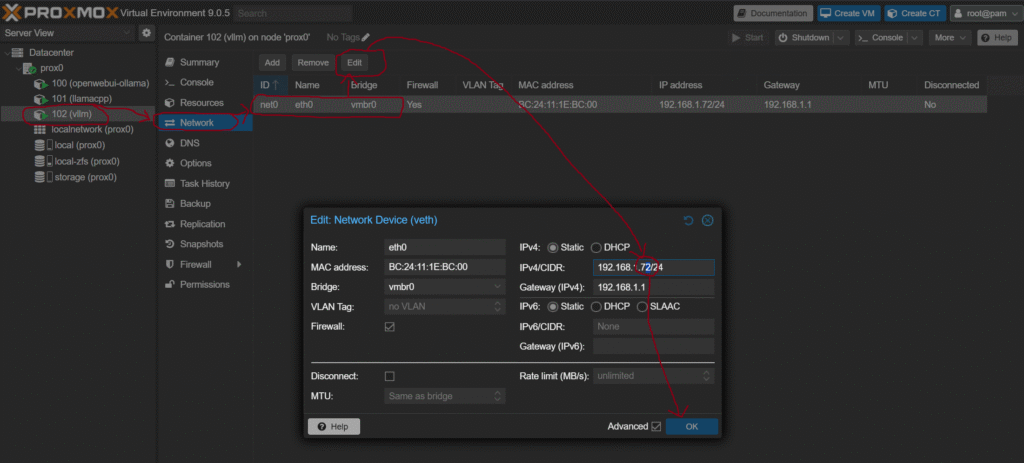
Grow storage of Proxmox 9 LXC
You should only grow an LXC as much as you need, not more! You will run into a decent amount of storage usage as you start stacking a lot of models. Here is the way to grow your LXC in GiB.

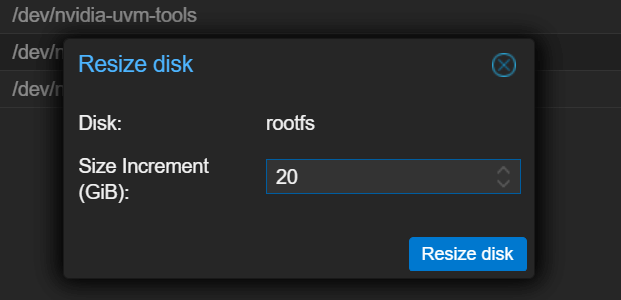
Note that I said GROW there. It cannot reduce.
Build vLLM from source inside our LXC
This is EASY since we have all the underlying components already ready to go and installed in our image we just restored.
This setup our python software and used pipenv to create an env for us. Next we need to install the vllm software.
That was both fast and simple. Are you glad you are using these guides yet?
Pulling SAFETENSOR files and running them locally
Connecting OpenWEBUI and vLLM
Start in the lower left of your openwebui instance and go to the admin menu/settings. Fill in with your vLLM servers IP:PORT/v1 and username and prefix. The prefix I use is vLLM- for this server so I can see which server is running what model quickly.
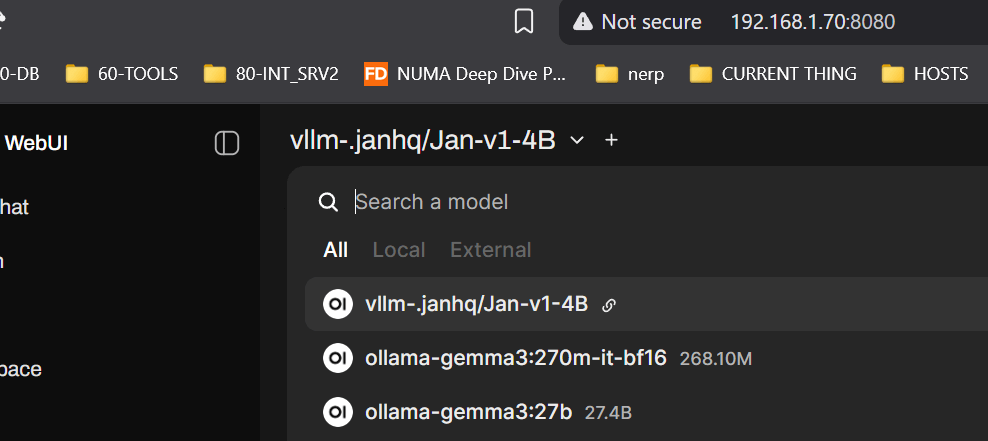

This helps me avoid overloading the VRAM on the same server. Here is the steps to follow, start in the lower left.
As always you should snapshot this once you have your vLLM container up and running. Easy fix to slide back. Snapshotting before upgrades is a good idea.